JSON → Excel
Given (a) an empty Excel template (.xlsx) whose cells already carry the document's structure — section labels, column headers, row labels — and placeholder cells for the data, and (b) a JSON file describing the values to insert, produce a filled copy of the…
Runs on Jetty's managed sandbox. No setup. Free for your first 10 runs.
Real runs, real outputs.
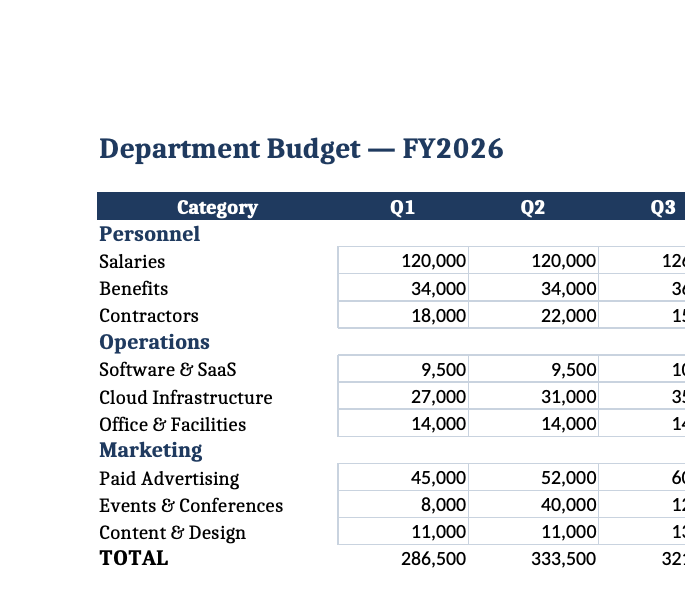
Department budget → filled quarterly figures
Match 9 budget categories by row label and write Q1–Q4 figures into the placeholder cells — section labels and FY-Total SUM() formulas preserved.
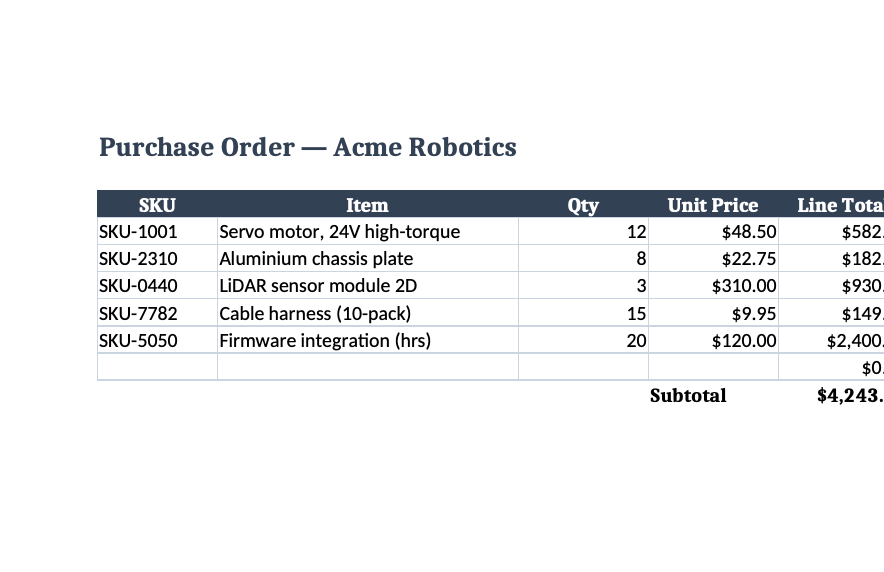
Purchase order → filled line-item table
Write a 5-row product table into the order template's line-item range — Line-Total (C*D) and Subtotal SUM() formulas preserved.
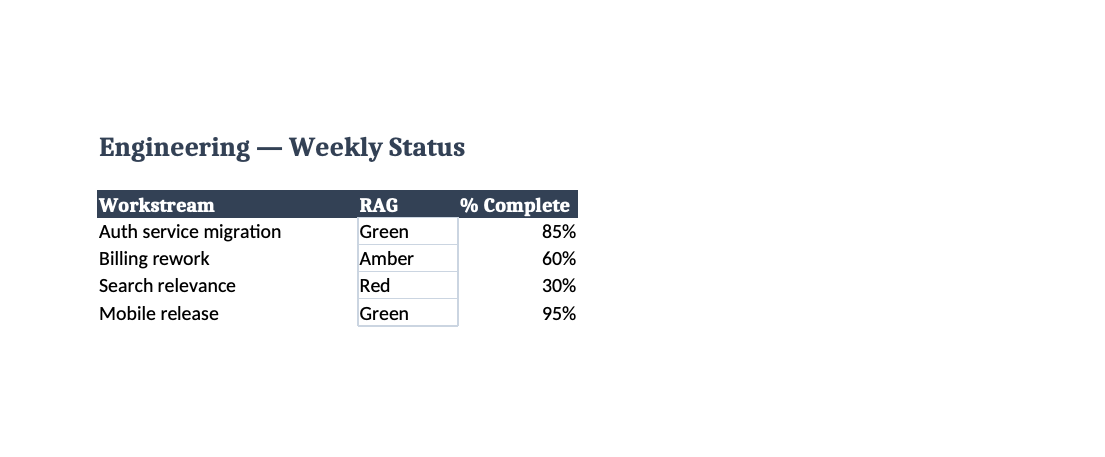
Weekly status report → RAG, %, and updates
Fill a per-workstream status report — a RAG data-validation dropdown, a percent-formatted cell, and free-text updates — matched by workstream label.
10 steps · start to finish.
- 1Step 1
Environment Setup
▶python -m pip install --quiet openpyxl beautifulsoup4 lxml mkdir -p "{{results_dir}}" # Resolve inputs from /app/assets (uploaded files land there) TEMPLATE="$(ls /app/assets/*.xlsx 2>/dev/null | head -1)" DATA="$(ls /app/assets/*.json 2>/dev/null | head -1)" NOTES="$(ls /app/assets/*.md 2>/dev/null | head -1)" echo "template=$TEMPLATE"; echo "data=$DATA"; echo "notes=${NOTES:-<none>}" [ -s "$TEMPLATE" ] || { echo "ERROR: no template .xlsx in /app/assets"; exit 1; } [ -s "$DATA" ] || { echo "ERROR: no data .json in /app/assets"; exit 1; } - 2Step 2
Read & Apply Notes (if present)
▶If a notes .md exists, read it before touching the workbook and extract structured rules: intentional blanks, dropdown/validation caveats (write only an accepted option, drop free text), sheets to…
- 3Step 3
Load & Classify — build the placement plan
▶wb = openpyxl.load_workbook(TEMPLATE) — keep formulas (data_only=False). 2. Load the fill data JSON. 3. For every cell in each touched sheet, classify it (store a cell_class map): - formula — value…
- 4Step 4
Fill the Workbook
▶Process fills sorted by (sheet, top_row, top_col). For each:
- 5Step 5
Overflow Handling
▶Under alert, never call insert_rows/insert_cols; dimensions must equal the template's. Truncate the value to fit, attach an openpyxl.comments.Comment to the first destination cell (OVERFLOW: 12 rows…
- 6Step 6
Save & Self-Verify
▶wb.save("{{results_dir}}/filled_workbook.xlsx") 2. Reopen the saved file — openpyxl.load_workbook(...) must not raise. 3. Spot-check 5 placed fills: read back the destination and confirm a non-empty…
- 7Step 7
Evaluate Outputs
▶Assign each fill a status:
- 8Step 8
Iterate on Errors (max 3 rounds)
▶For any FAIL: read the captured error, apply the matching Common Fix, retry just that fill, re-evaluate. Repeat at most 3 times; after that keep FAIL and surface it in summary.md.
- 9Step 9
Write Executive Summary
▶Write {{results_dir}}/summary.md:
- 10Step 10
Write Validation Report
▶Write {{results_dir}}/validation_report.json: